Using the Purchase Order Browse
PO Receipts Excelerator includes a browse facility for selecting detail lines from outstanding purchase orders.
To use this browse, user must use a worksheet that have the browse activated.
Then, select a cell in the purchase order number range.
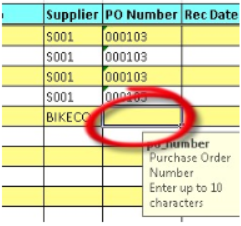
Then right click and select browse.
This screen will be displayed.
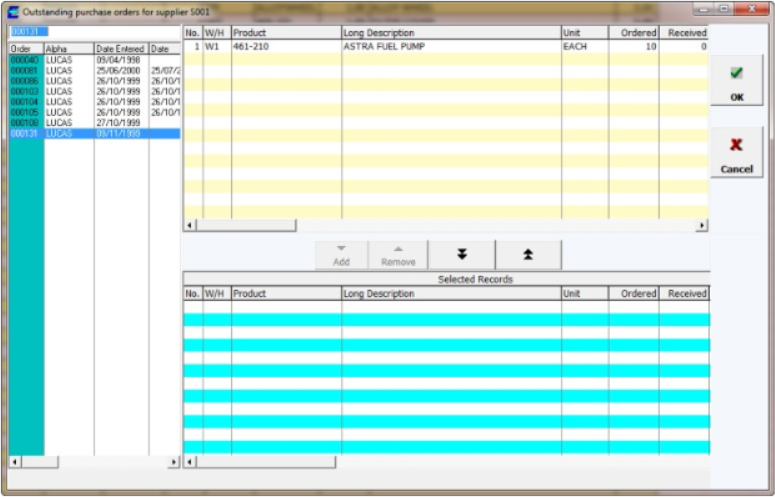
If the option is selected to browse only for POs for the entered supplier,
then the program will look for the last entered supplier in the column if using multiple transactions per sheet or the entered supplier in the case of single transaction per sheet.
User can select the order want to receive from in the left hand pane.
- The detail lines are then displayed in the top right hand pane.
- User can then add detail lines from an order.
- Select OK and the detail lines will be returned to the sheet.