Download From Sage
There are two ways to specify which data to extract from Sage. Either by selecting ranges, or entering which posting codes on the sheet
Downloading Ranges of Data
In user standard or custom template, select Analyser > Download. The following screen will be displayed.
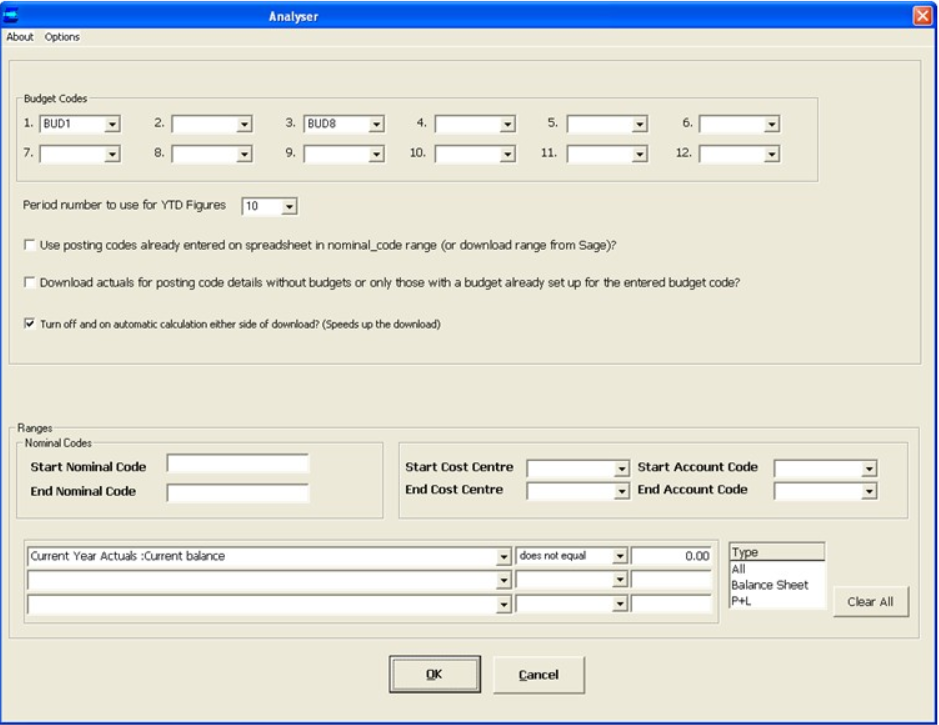
Note, If "Use posting codes already entered on spreadsheet..." is ticked, then the "Ranges" input area will not appear.
Enter:
Budgets (1 to 12) - budget codes for budgets being extracted (to Budget(1 to 12) ranges).
Period number to use for YTD Figures - This setting will determine what period to use when calculating YTD figures. This will default to any value entered in the "Current Period (for YTD figures)" range on the spreadsheet. It is recommended that user use the "Current Period" range if user wish to change the YTD period, so that the drill down figures are consistent with the figures downloaded to the spreadsheet.
Use posting codes already entered on spreadsheet.... - Tick to download data for posting codes already entered in the nominal_code range. Untick to download specified ranges of posting codes.
Download actuals for posting code..." - if this is not ticked, then only posting codes with a budget defined for Budget code 1 will be extracted.
Turns off and on.. - if ticked, the spreadsheet will not recalculate formula until the download is complete. This can speed up downloads.
Ranges
These allow a ranges of the posting codes being downloaded, and to limit the download to Balance Sheet or P+L accounts.
The second section allows the user to select posting codes that have certain values.
User can select the value user wish to select on:
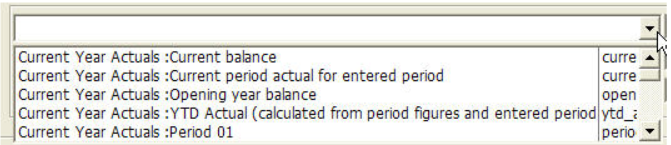
Which values user want to select:

For example, if "Current Year Actuals: Current Balance", with "does not equal" and 0.0 are selected, then the extract will only retrieve posting codes with a current balance that is not zero.
Download Data for Posting Codes entered on the Sheet
Clear previously downloaded data using the Analyser->Clear All option
Enter posting codes in the nominal_code range. A browse is available.
Select Analyser > Download
Tick the "Use posting code already entered..." box. The Ranges section is disappear.
Select OK to download. Data will be retrieved for any posting codes entered. (Blanks can be left on lines between posting codes)